Overview
If the battery you need is not listed yet, you do not have to keep checking. Save the search as an alert and we email you when a new listing matches. We only email when something new matches.
You can set an alert for a make, a model, a set of filters, or a manufacturer part number. You do not need an account. Guests confirm their email address once. Signed-in buyers can manage alerts from their account.
Set up an alert
-
Type what you need in the marketplace search. The search box accepts a make, a model or a part number, for example
A7893404428. Spacing, capitals and dashes in a part number do not matter.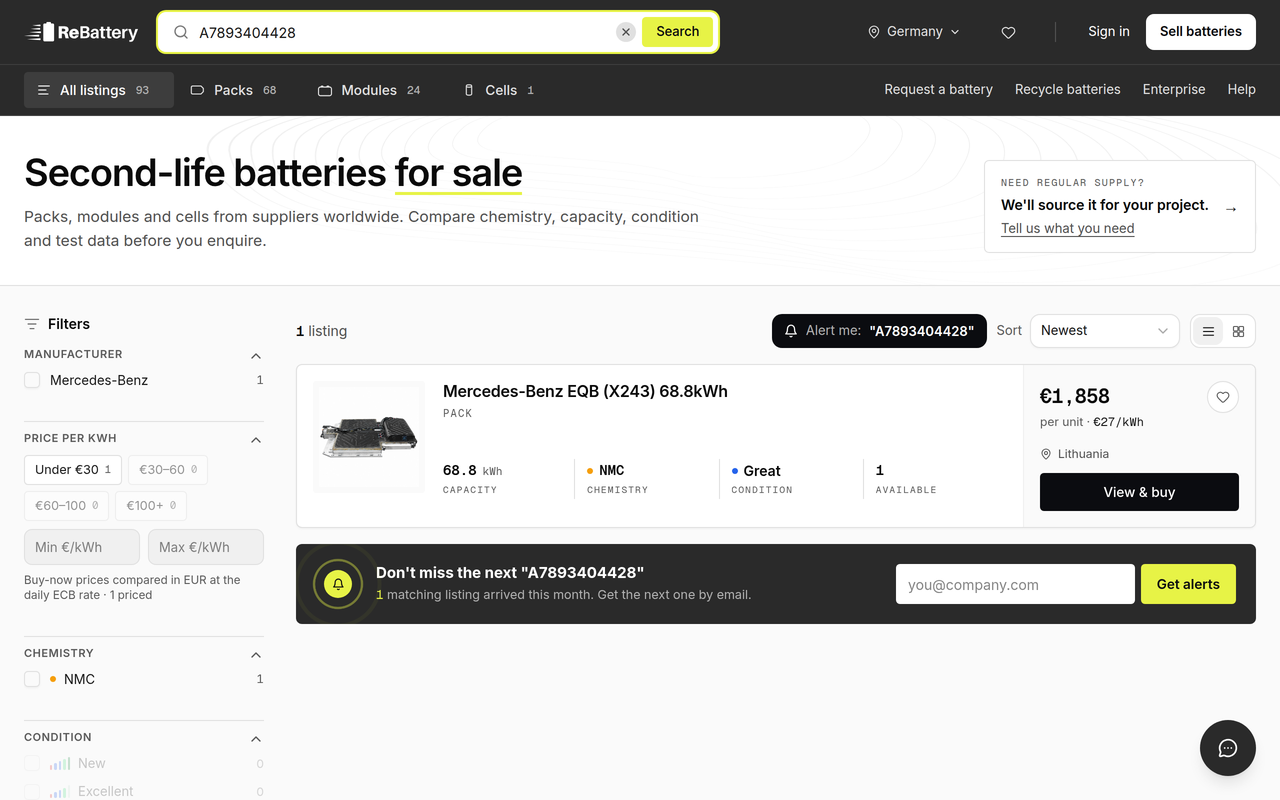
Searching the marketplace by part number -
Add any filters you want, such as chemistry, condition or country. The alert keeps your filters as well as your search words.
-
Start the alert from either of these places:
- The Alert me button above the results, which names your search.
- The dark card under the results with an email field and Get alerts.
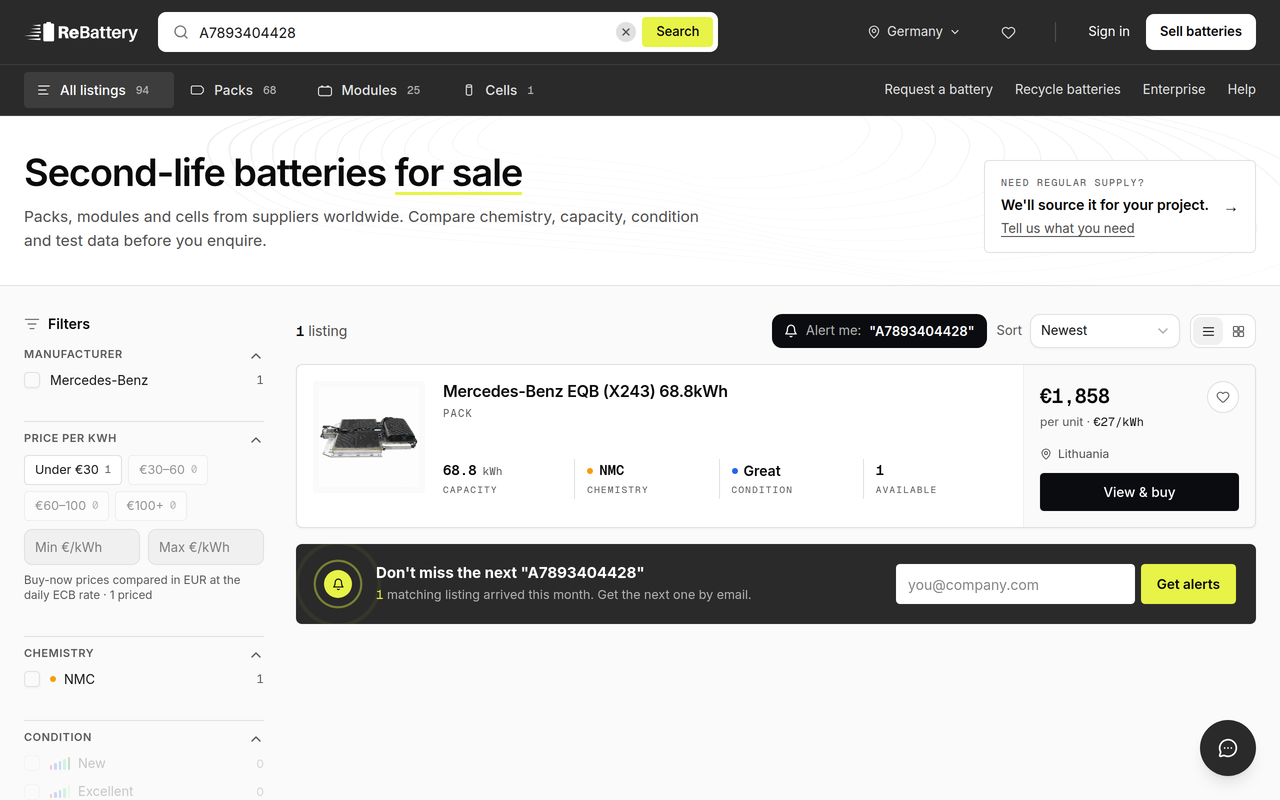
The alert card under the results -
If you used the Alert me button, a Get alerts for this search window opens. Enter your email, choose Daily or Weekly under How often, then select Turn on alerts.
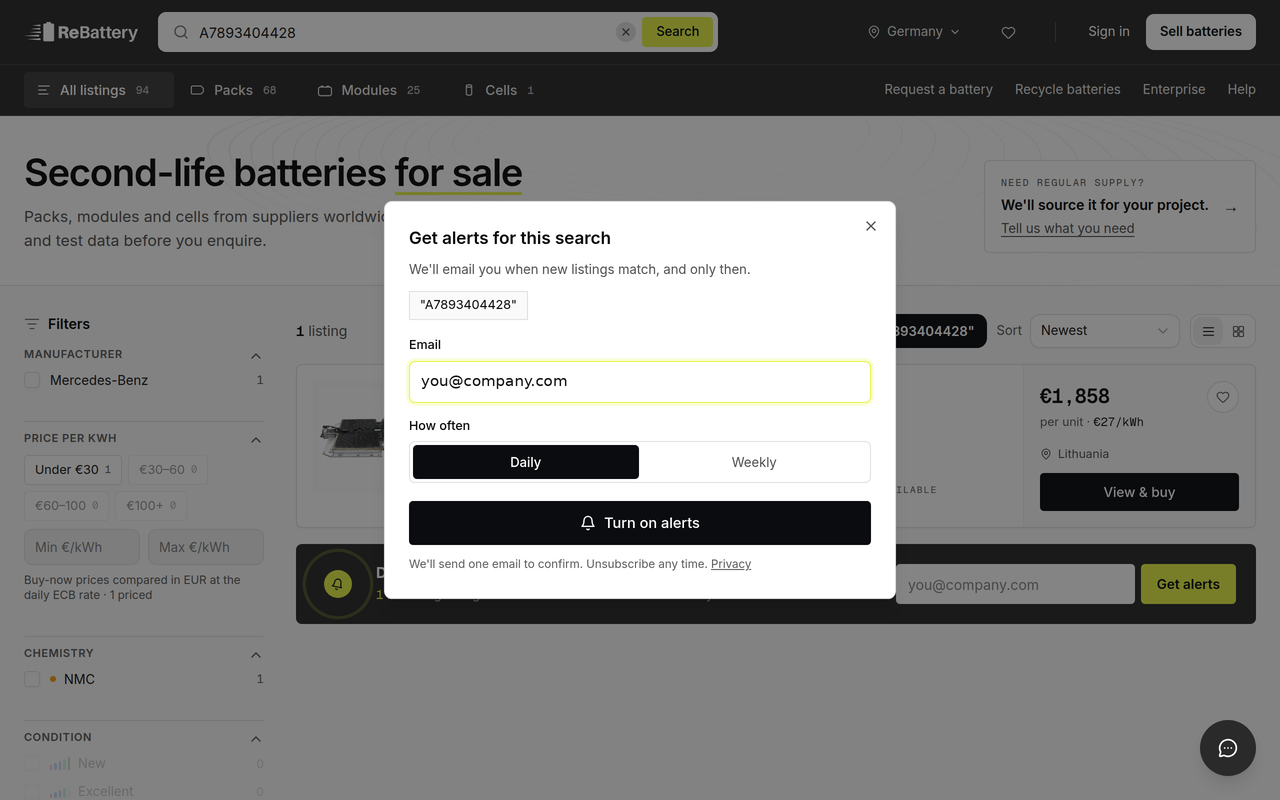
The Get alerts for this search window
Confirm your email
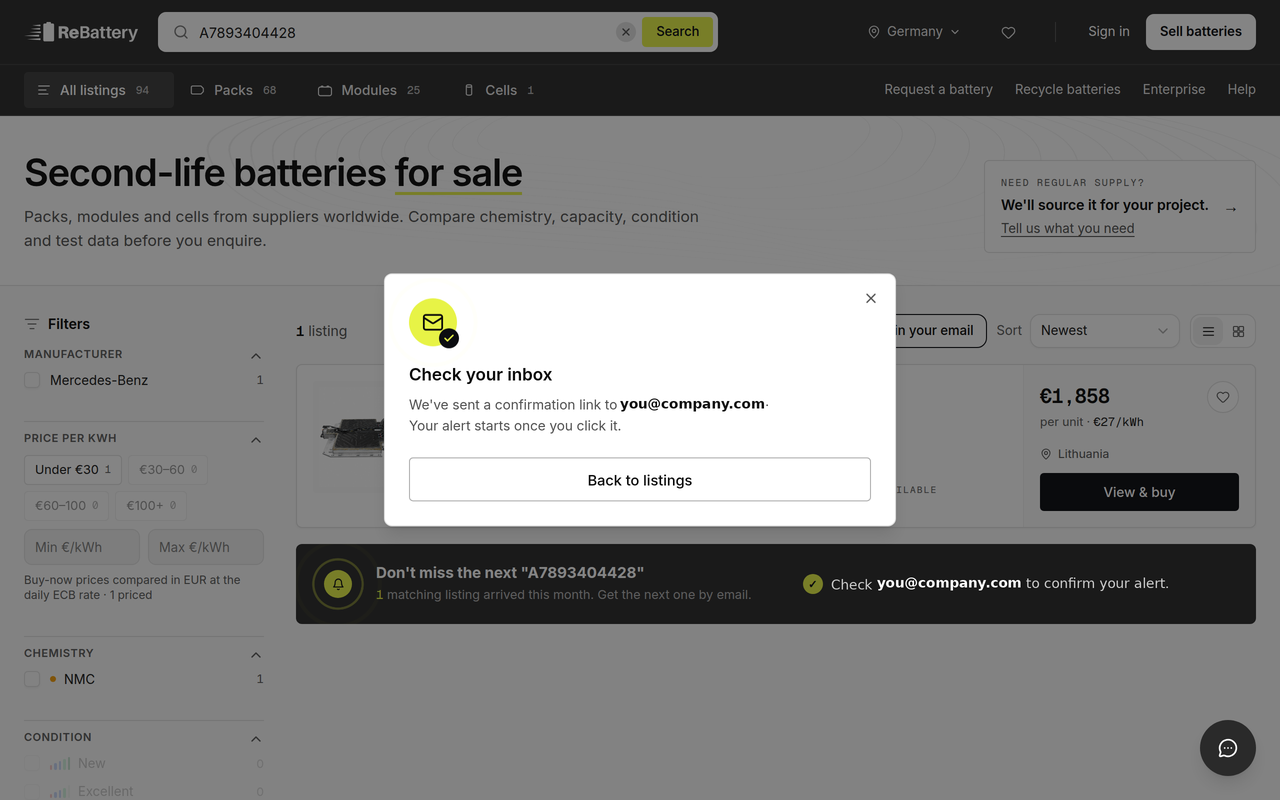
Guests see Check your inbox. We have sent a confirmation link to the address you entered, and the alert starts once you open it.
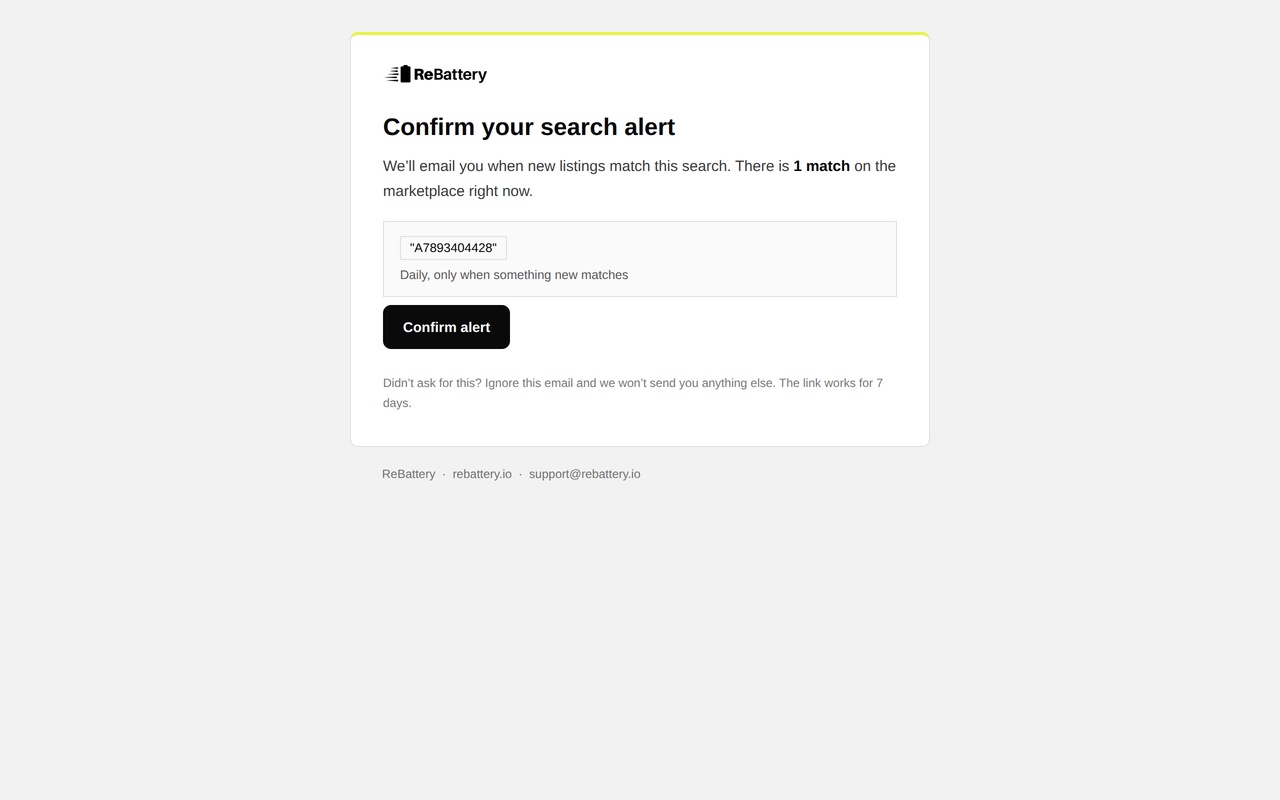
The email comes from Supply @ ReBattery with the subject Confirm your alert: followed by your search name. Select Confirm alert. The link works for 7 days. If you did not ask for the alert, ignore the email and we send nothing else.
After you confirm, the page says Your alert is on. Use See current matches to open the search, or Manage alerts to change it.
If you are signed in as a buyer, the alert turns on straight away and no confirmation email is needed.
When nothing is listed yet
This is when an alert helps most. If no listing matches a part number or battery, the results page says so and gives you two choices:
- Find it for me sends a sourcing request, and the ReBattery team checks with sellers in our network. See Sourcing Requests.
- Alert me emails you the moment a matching battery is listed. The email field sits under the line or get an email when one is listed. Enter your address and select Alert me.
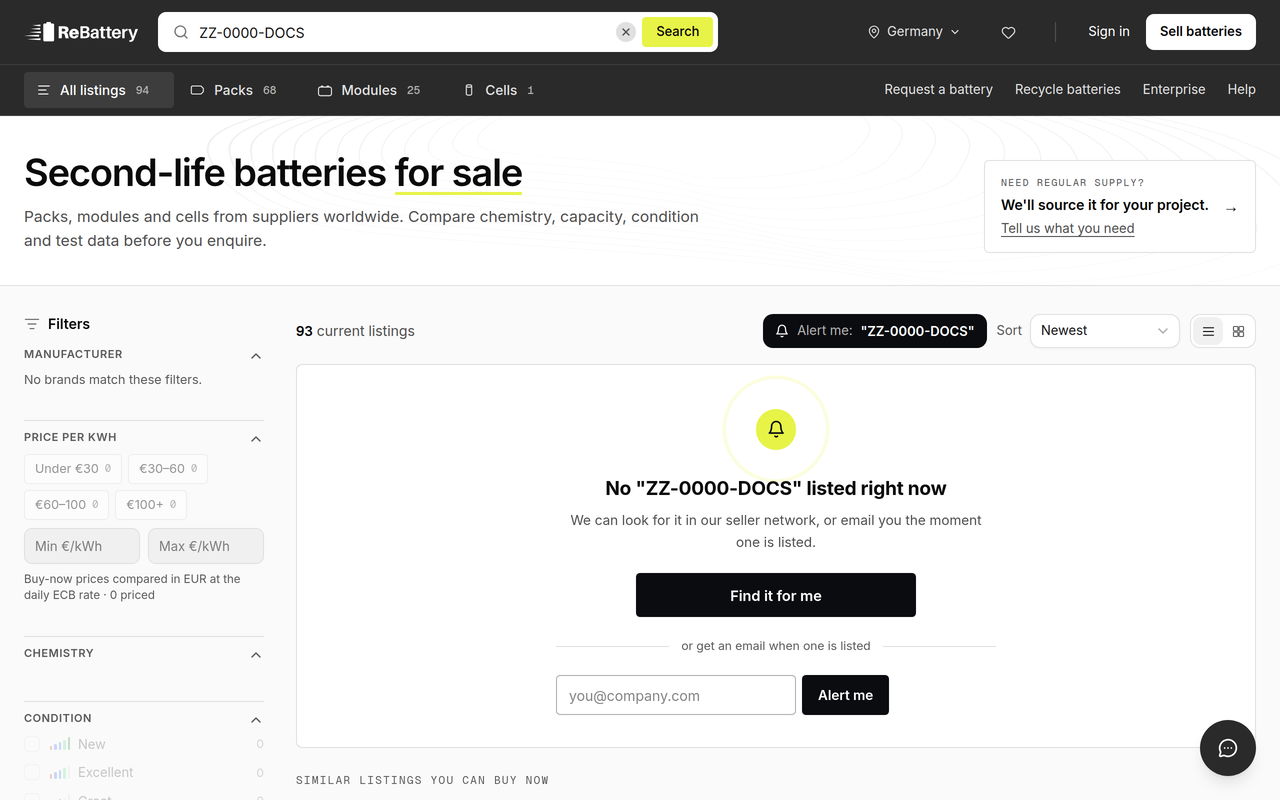
You can use both. The request asks us to look now, and the alert tells you when a seller lists it.
What you receive
- One email per alert run, only when there is something new that matches. We never send an empty alert.
- Daily alerts go out once a day. Weekly alerts go out once a week.
- Each email links to the new listings and to Manage alerts.
Change, pause or remove an alert
Open Manage alerts from any alert email. The page lists every alert for your address.
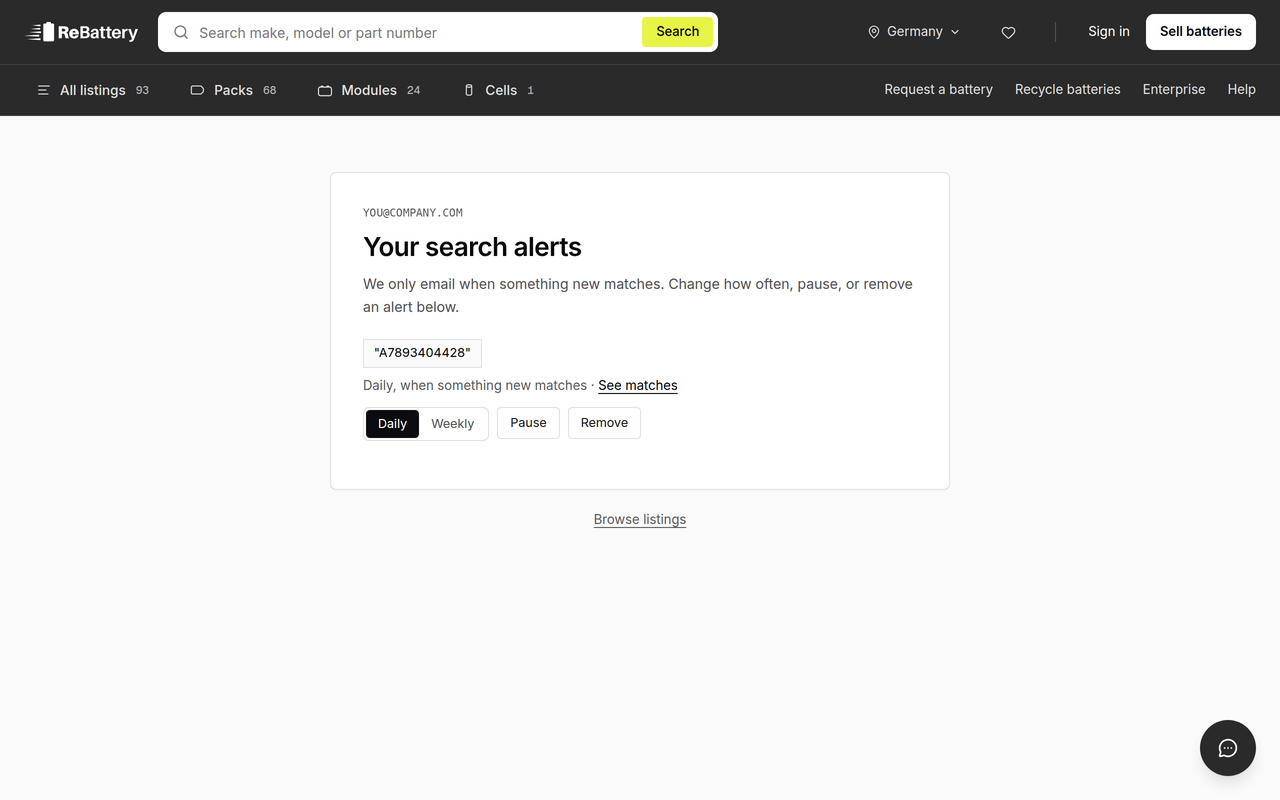
For each alert you can:
- Switch between Daily and Weekly.
- Select Pause to stop emails and Resume to start again. Resuming only looks for listings added from then on.
- Select Remove to delete the alert.
- Select See matches to open the search.
An alert that is still waiting for confirmation only offers Remove. The frequency and Pause controls appear once you confirm it.
Signed-in buyers also find these alerts under Saved → Watched searches. Select + Watch a search to build one from filters, choose Weekly, Daily or Paused, and use Stop watching to remove it.
Good to know
- An email address can hold up to 10 alerts. Remove one to add another.
- Saving a search you already watch does not create a second alert. Guests get an email with a Manage alerts link. Signed-in buyers see the alert as already on.
- A part number alert searches the whole listing, including the title, so it also catches listings that only mention the number there. If a seller lists the same battery without a part number, a broader alert by make and model can catch it. Set up both for the best coverage.
- Alerts go out on a schedule, so a new listing reaches you at the next daily or weekly run, not the minute it goes live.